How to Create a Replacement Product






The Replacement Product Feature is an important tool when it comes to data integrity in Erudus. This guide shows you how and when it should be used...
When one product replaces another, Erudus Manufacturers should use the replacement product feature to ensure a seamless transition.
This feature links the old and new products in Erudus - so customers such as Wholesalers immediately know that a particular product has a replacement. This helps them manage their product range and product data in Erudus, as well as allowing us to maintain data accuracy.
And because accuracy is so important, it’s crucial that the replacement feature is used correctly. Here’s how you do that...
Step 1
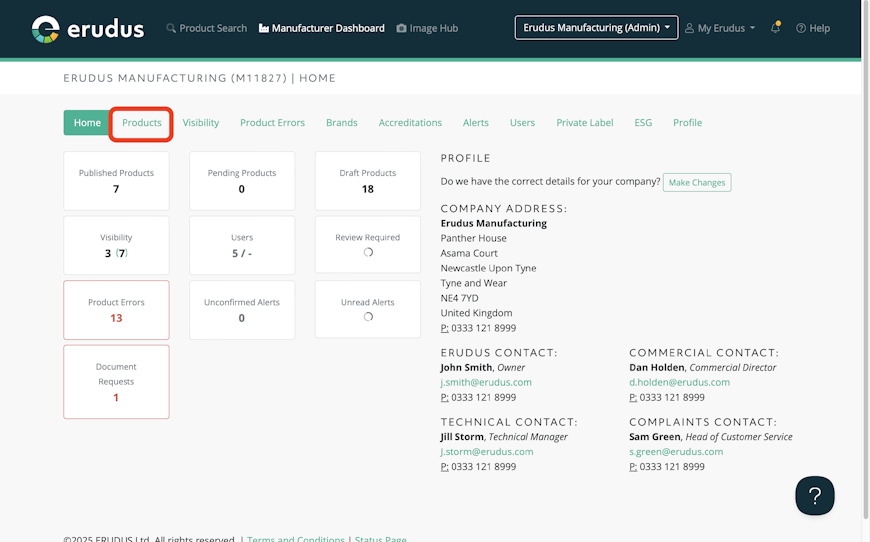
First you need to identify the product you wish to replace. You can do this by selecting “Products” or “Published products” from the Dashboard.


Step 2
You will then be presented with the list of published products to choose from. Locate the one you want, click on the 3-dot drop-down menu and select “Create Replacement”.
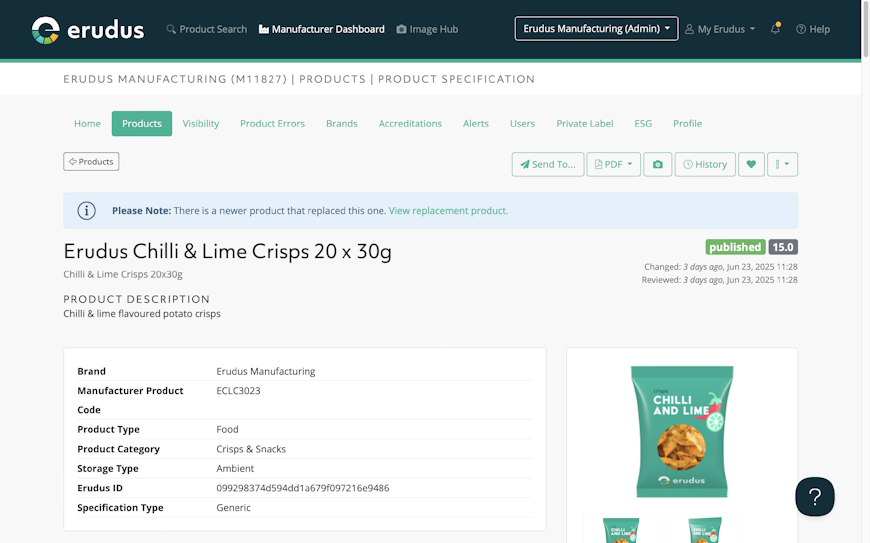
Once you have made a replacement, a link is created between the old product and the new one. When viewing the old product in Erudus, a banner is presented across the top of the page, highlighting that the product has been replaced with a link to the new one.
Note: The replacement product feature should not be used if you want to update an existing product, as some data has changed. To do this, please follow the How to update a product guide on Knowledge Base.


Still got questions?
The Erudus Knowledge Base is full of guides like this one on the Replacement Product Feature, taking you step by step through many Erudus functions - from how to add a product to managing brands in Erudus. You can visit Knowledge Base here.
And of course our dedicated Erudus Support Team are always on hand to help and can be contacted on 0333 121 8999 or via email at support@erudus.com.
You may also be interested in…


You may also be interested in…