Viewing your Range List






Erudus works best for Wholesalers when the product codes for their product range (i.e. the products they sell to their customers) are matched and linked to product specifications in the Erudus Data Pool. And we can do all the hard work here - automating the matching and linking of your Wholesaler product codes via your Range List.
And how does this help?
Well, having a Range List uploaded to your Wholesaler account means you can see which of the products in your range have matched with specifications in the Data Pool and which haven't - so you can review your range coverage and identify which of your suppliers you may need to contact to publish Erudus specifications.
And a Range List will have its data compared to the Erudus Data Pool on a weekly basis to keep looking for new product matches.
Now here’s how to view your Range List...
Step 1
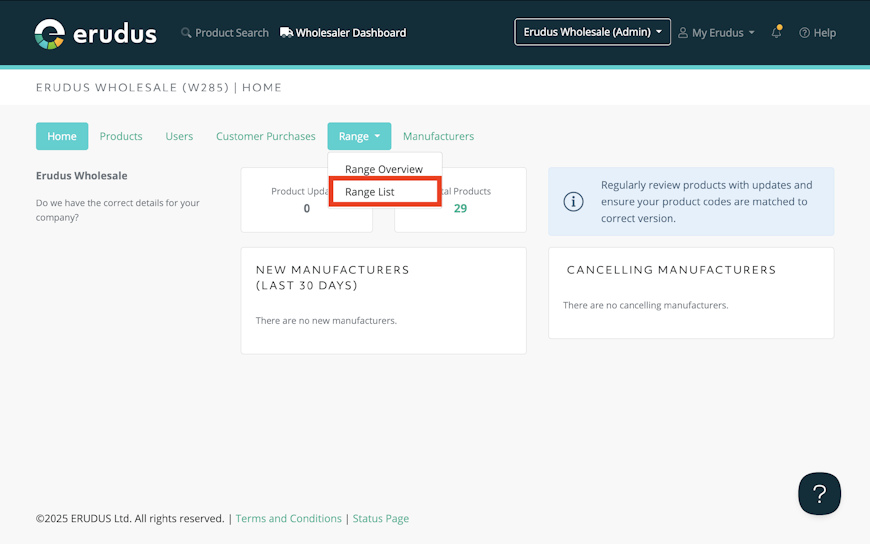
On your Wholesaler Dashboard, click the "Range" dropdown menu and select the "Range List" option.


Step 2
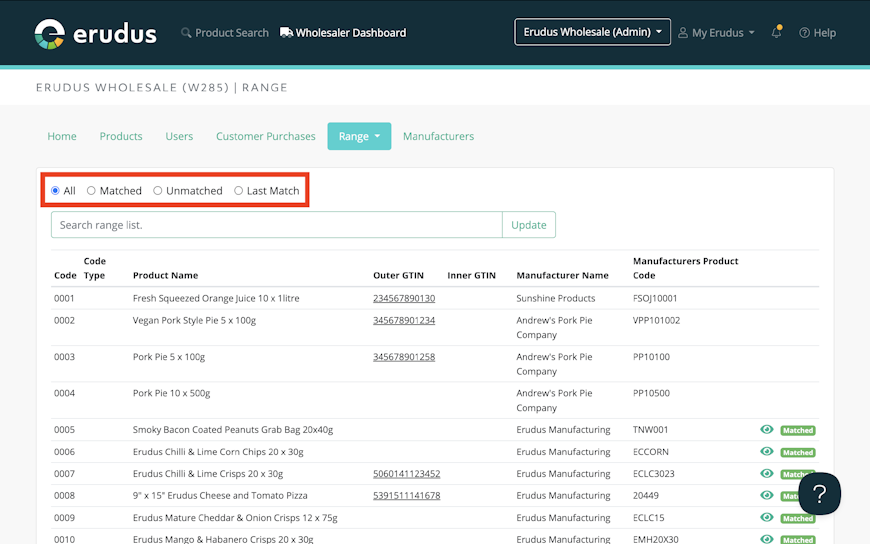
You will be taken to the Range List that has been uploaded to your account.
You can use the filter options at the top of the page and click the "Update" button to apply the following filters to the Range List:
- All - Display all products in your range list, whether they have matched to a specification or not
- Matched - Only display products in your range list that have matched to a specification
- Unmatched - Only display products in your range list that have not matched to a specification
- Last Match - Only display the most recently matched products in your range list
If there is no Range List uploaded to your Erudus account, contact the Erudus Support Team on 0333 121 8999 or via email at support@erudus.com and they can help you.

Step 3
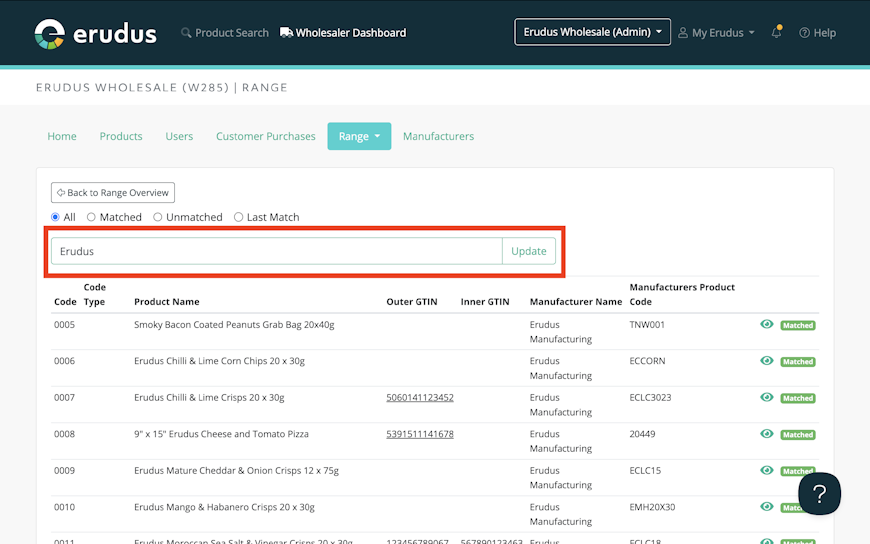
You can also use the search bar to search the data in the range list you have provided, using the following criteria:
- Your Wholesaler Product Code
- The Product Name
- Outer GTIN
- Inner GTIN
- Manufacturer Name
- Manufacturer Product Code

Step 4
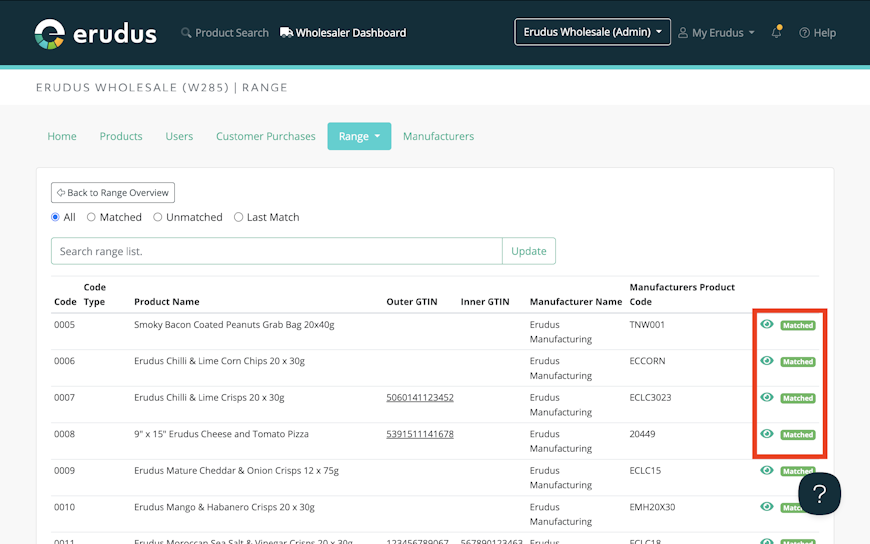
If a product in your Range List matches with a specification in the Erudus Data Pool, there will be a green “Matched” icon at the end of that product’s row to signal a match.
The green eye icon can be clicked to view the specification that the product in your range matches to.

Need more help?
For more information on providing Erudus with a Range List to upload to your Wholesaler account, contact the Erudus support team on 0333 121 8999 or via email at support@erudus.com.
And of course for more articles like this, Erudus Knowledge Base is the place to find them, with a plethora of guides taking you step by step through many Erudus functions - from how to add a product to managing brands in Erudus. You can visit Knowledge Base here.
You may also be interested in…


You may also be interested in…