How to update a legacy specification in Erudus






We mentioned in the January Release Notes that Erudus is currently encouraging those Manufacturers with legacy specifications on their account to update them. Doing so will put them at their best advantage in the Erudus Data Pool, so here’s how to do it…
What are Legacy Specifications?
Legacy specifications are product specifications that were created before the 8th of January 2024. These specifications do not completely adhere to the changes we made to the data model during the major upgrade to the Erudus platform 2 years ago. As such, these product specifications will require updating to the new specification type in order to promote the product to its best advantage. You can see further details on what the changes made in the Erudus upgrade here.
How do I know if I have legacy specifications?
Other than via your Products List, as confirmed in our most recent Release Notes, after logging into Erudus Manufacturers that have Legacy specifications published to their account will now see a banner at the top of their Manufacturer Dashboard advising them to update these legacy specifications.
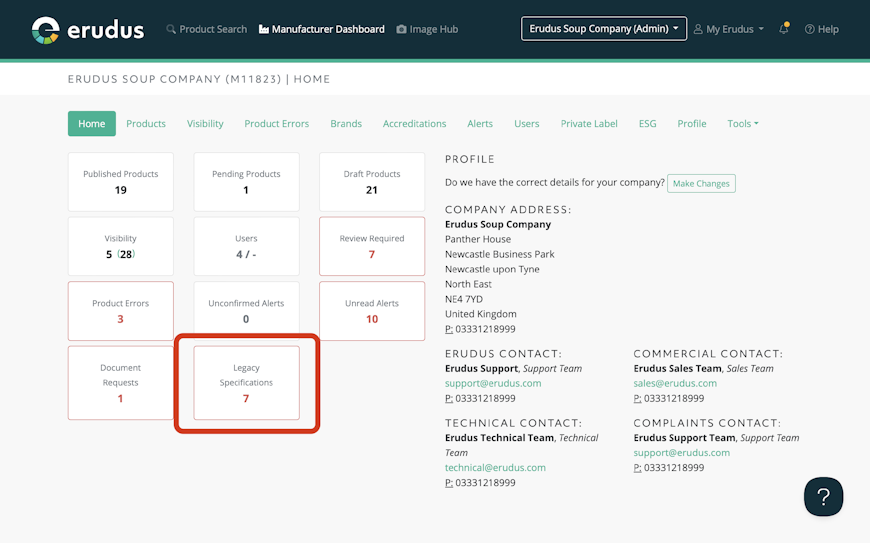
Additionally, a new tile has been added to the Manufacturer Dashboard to display the number of Legacy Specifications that are currently published to the Manufacturer’s account.
In this quick guide we’ll show you how to update a product from “Legacy” to a new specification type by editing the existing Legacy product and selecting the relevant specification type when prompted.
You may also be interested in…


You may also be interested in…
Major changes and upgrades coming to Erudus: All the previews
ReadHow to update a legacy specification in Erudus
Step 1
From the Manufacturer Dashboard, click on the "Products" button at the top of the screen, or the "Published Products" panel to be taken to your products list.


Step 2
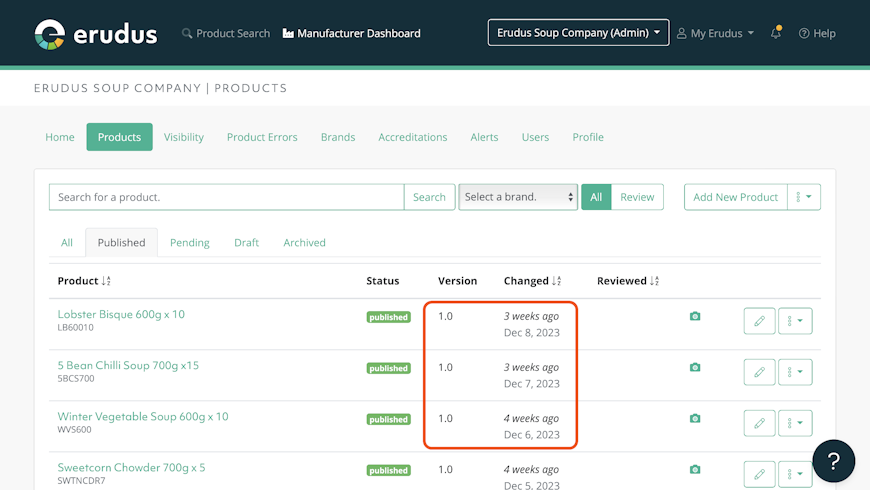
You will be able to identify a "Legacy" specification as it will have a version number 1.0 with a last changed date before the 8th of January 2024.


Step 3
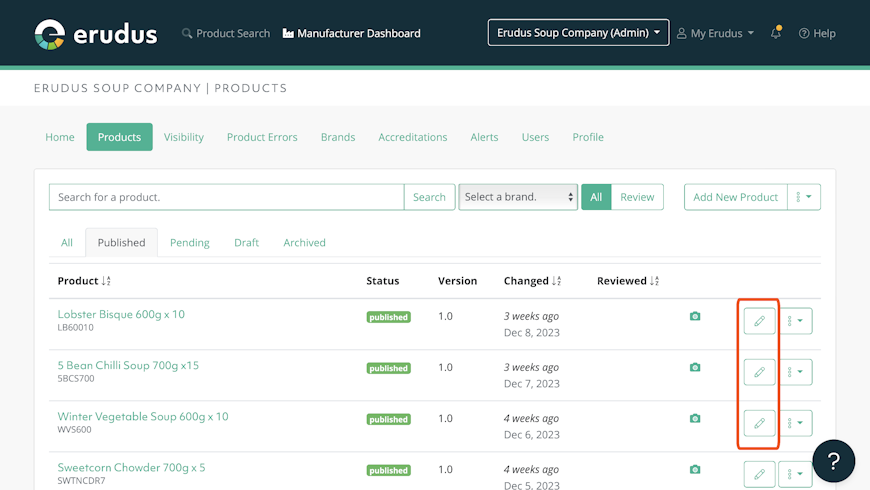
To update the "Legacy" specification, just click the "Edit" button (the green pencil icon) at the end of the row, and you will be taken to the Product Editor.

Step 4
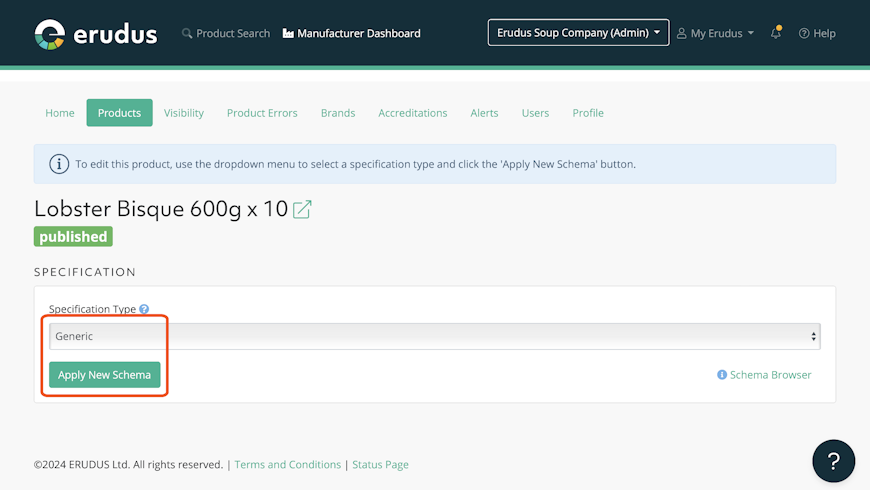
Once you’ve been taken to the Product Editor you will be prompted to pick a Specification Type for your product and click the "Apply New Schema" button.
If no specific Product Specification Type fits your product, you can use the "Generic" option.

Step 5
Now that the new Specification Type has been applied to the product, please review the product data using the navigation menu on the left side of the editor and review the following:
- All existing data is correct
- Any new mandatory attributes have been completed
- Newly introduced non-mandatory attributes are reviewed and completed if appropriate.
Some new attribute groups that have been added include:
- Additional Allergen Information
- Free From Claims
- New Waste Packaging Data
- Product Characteristics
When reviewing attributes for completion, you can click on the blue tooltip (question mark) next to the attribute name to be presented with sidebar guidance for completing that attribute.

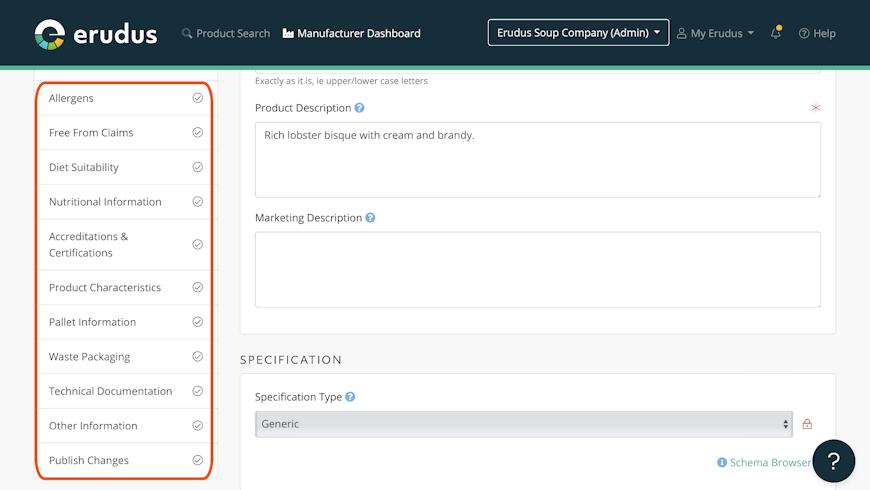
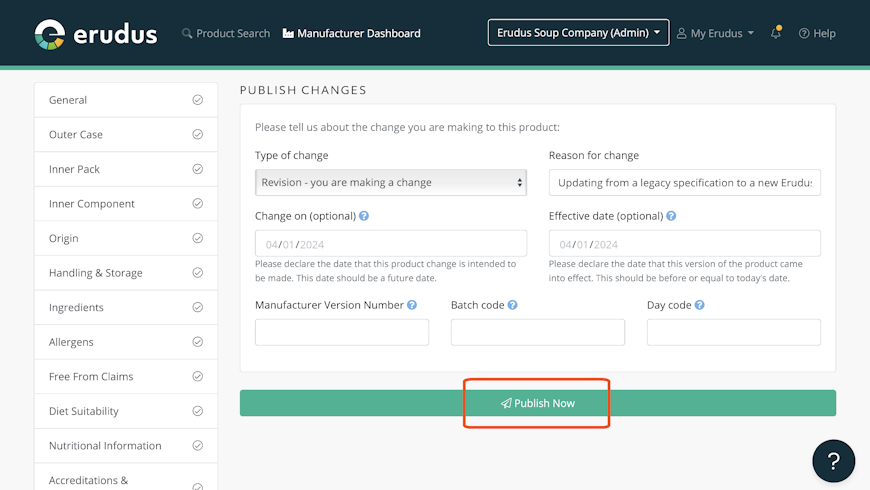
The last option on the navigation bar is to publish any changes made. Click on the “Publish Changes” section on the navigation bar, then click the green "Publish Now" button.
Your product will now be updated in the Data Pool as a new Erudus specification with the updated data model.

Need more help?
The Erudus Knowledge Base is full of guides like this one on Legacy Specifications, taking you step by step through many Erudus functions - from how to add a product to managing brands in Erudus. You can visit Knowledge Base here.
And of course our dedicated Erudus Support Team are always on hand to help and can be contacted on 0333 121 8999 or via email at support@erudus.com.
You may also be interested in…


You may also be interested in…
Manufacturers New Enhancement: Product Specification Type
ReadYou may also be interested in…


You may also be interested in…


